


Creating a Search Folder in Outlook 2007/2010 for use within Outlook Web App
Use the following steps to create a Search Folder in your mailbox that will allow you to search the contents of your mailbox in the event that you are receiving incomplete or incorrect search results using the built-in search functionality in Outlook.
Configuring the Search Folder
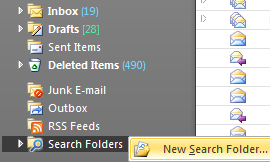
- From Outlook, locate the Search Folders folder from the folder list on the left, right-click "Search Folders", and click "New Search Folder..." Alternately, press Ctrl+Shift+P to bring up the New Search Folder interface.
- In the New Search Folder window, scroll down to "Create a custom Search Folder", then click the Choose button.
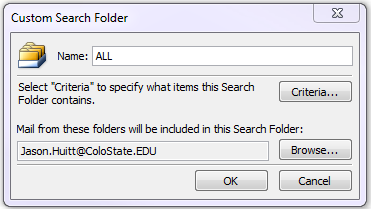
- Provide a name for the folder, such as "All", then click OK. By default, this new search folder will include all folders in your mailbox. If you wish to customize the list of folders included in this search view, click the Browse button and put a check next to each folder you would like to have included (note that the "Search Subfolders" option at the bottom of the Select Folder(s) window is checked by default).
- You will receive the warning message shown below stating "You have not specified any criteria for this Search Folder. All messages in the folders you have selected will appear in this Search Folder. Do you want to continue?". When prompted, click Yes to continue.
- Click on the newly created ALL folder to verify that the new folder becomes populated with messages from all folders of your mailbox.
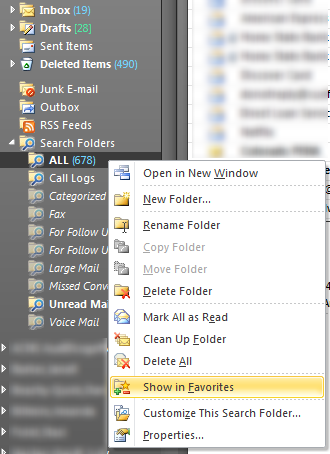
- Next, right click on the newly created "All" Search Folder, and click the Show in Favorites option. Note that in Outlook 2007 this option is called "Add to Favorites".


Performing a search in Outlook using the new Search Folder
- In Outlook, select the "All" Search Folder from the folder list.
- You can now perform a search using the Search bar above the message list, or by pressing Ctrl+E. This will perform your search against all items in your mailbox as reflected in the Search Folder.
Performing a search in Outlook Web App using the new Search Folder
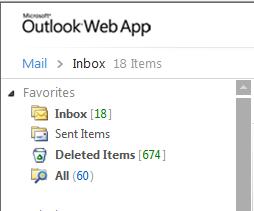
- While logged into the Outlook Web App, select the "All" search folder under the Favorites section of the folder list at left (shown below).
- You can now perform a search using the Search bar above the message list. This will perform your search against all items in your mailbox as reflected in the Search Folder.